ExcelHire E-Sign
One document-signing flow for recruiting and HR
Upload a PDF, add the fields you need, send it to candidates or employees and watch it get signed. The signed PDF is saved to their record automatically.
Sample document
Candidate signature
ExcelHire E-Sign
One document-signing flow for recruiting and HR
Upload a PDF, add the fields you need, send it to candidates or employees and watch it get signed. The signed PDF is saved to their record automatically.
Sample document
Candidate signature
Send a document. Get it back signed.
Upload a PDF and send it to the candidate. Once it is signed, the completed copy comes back to the recruiter.
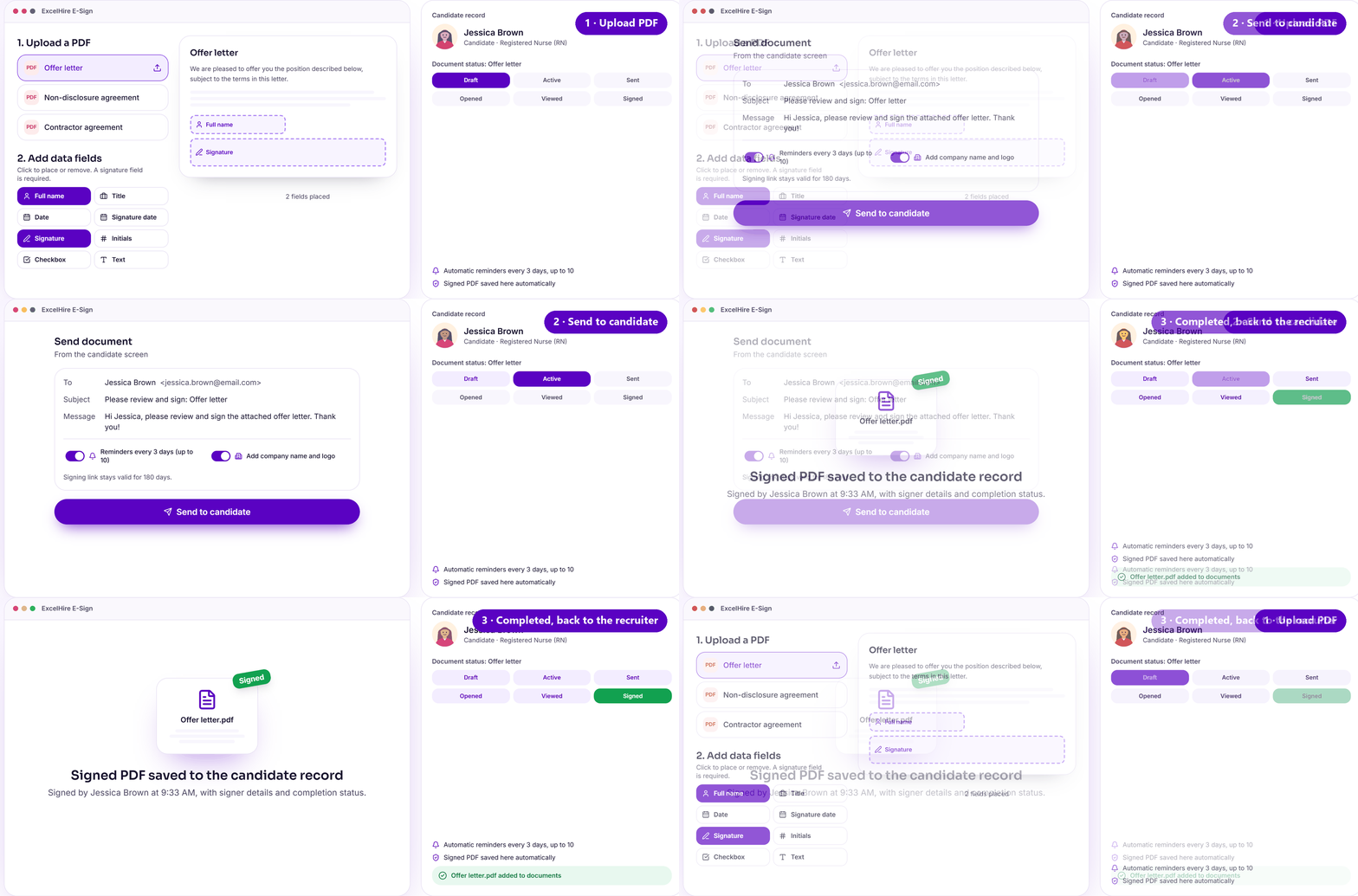
Preview with sample data. Learn more about ExcelHire E-Sign
How ExcelHire E-Sign works
From PDF to signed record in seven steps
Upload a PDF
Upload any PDF. It becomes an editable document for placing fields.
Add data fields
Drag and drop as many fields as you need anywhere on the page.
Document goes active
Once the fields are placed, the document is ready to send.
Send to signers
Email candidates or employees with a custom message, plus your company name and logo.
Signer reviews and signs
They open the email, fill in the required information and sign.
Document completed
The system is notified as soon as every required signer has finished.
Signed PDF saved
The signed PDF is stored on the candidate or employee record with signer details and status.
Two teams, one signing flow
Recruiting sends to candidates. HR sends to employees.
Recruiting: documents for candidates
HR: documents for employees
Data fields you can add
Every field a hiring document needs
Full name and title
Pre-filled or completed by the signer.
Date and signature date
An editable date, plus a signature date that records the moment of signing.
Signature and initials
Drawn or typed by the signer.
Text
Single-line or multi-line text for anything else you need to collect.
Check boxes, dropdowns and radio buttons
Let signers confirm, choose or acknowledge.
Logo and custom text
Brand the document with your logo and your own wording.
No template upload
Turn any PDF into a reusable template
You don't need a special template file. Upload any PDF, convert it into a template inside ExcelHire and place as many data fields as you like. Recruiting and HR keep their templates separate, so each team's documents stay organised.
Interview templates
5 questions · coding
4 questions · shifts, license
5 questions · role-play
Email and reminders
Nobody forgets to sign
Sent from ExcelHire
Documents go out from ExcelHire with your custom subject and message.
Automatic reminders
Reminders go out on a schedule, for example every 3 days, up to 10 reminders.
Link valid for 180 days
Signers have plenty of time to open and complete the document.
Live tracking
See when a document is opened, viewed and signed.
Activity log
Every step recorded on the record
Each document leaves a clear trail on the candidate or employee record, so you always know where it stands.
E-SIGN_SENT
The document was sent to the signer.
OPENED
The signer opened the email.
VIEWED
The signer viewed the document.
SIGNED
The signer completed and signed it, and the signed PDF was saved to the record.
Questions we hear often.
What can I send with ExcelHire E-Sign?
Any PDF. Recruiting teams typically send offer letters, agreements and NDAs to candidates; HR teams send onboarding documents, HR policies and compliance forms to employees.
Do I need special template files?
No. Upload any PDF and convert it into a template inside ExcelHire, then place the data fields you need.
Which fields can signers fill in?
Full name, title, date, signature date, signature, initials, single or multi-line text, check boxes, dropdowns, radio buttons, plus your logo or custom text.
How do reminders work?
ExcelHire sends automatic reminders on a schedule, for example every 3 days, up to 10 reminders. The signing link stays valid for 180 days.
Where does the signed document go?
The signed PDF is saved automatically to the candidate or employee record, with signer details, completion status and an activity log.
Can I send to several people at once?
Yes. Send to one or multiple candidates, or to a single employee or many.
Keep exploring
See ExcelHire E-Sign in a demo
We'll walk through sending an offer letter to a candidate and onboarding documents to an employee.